
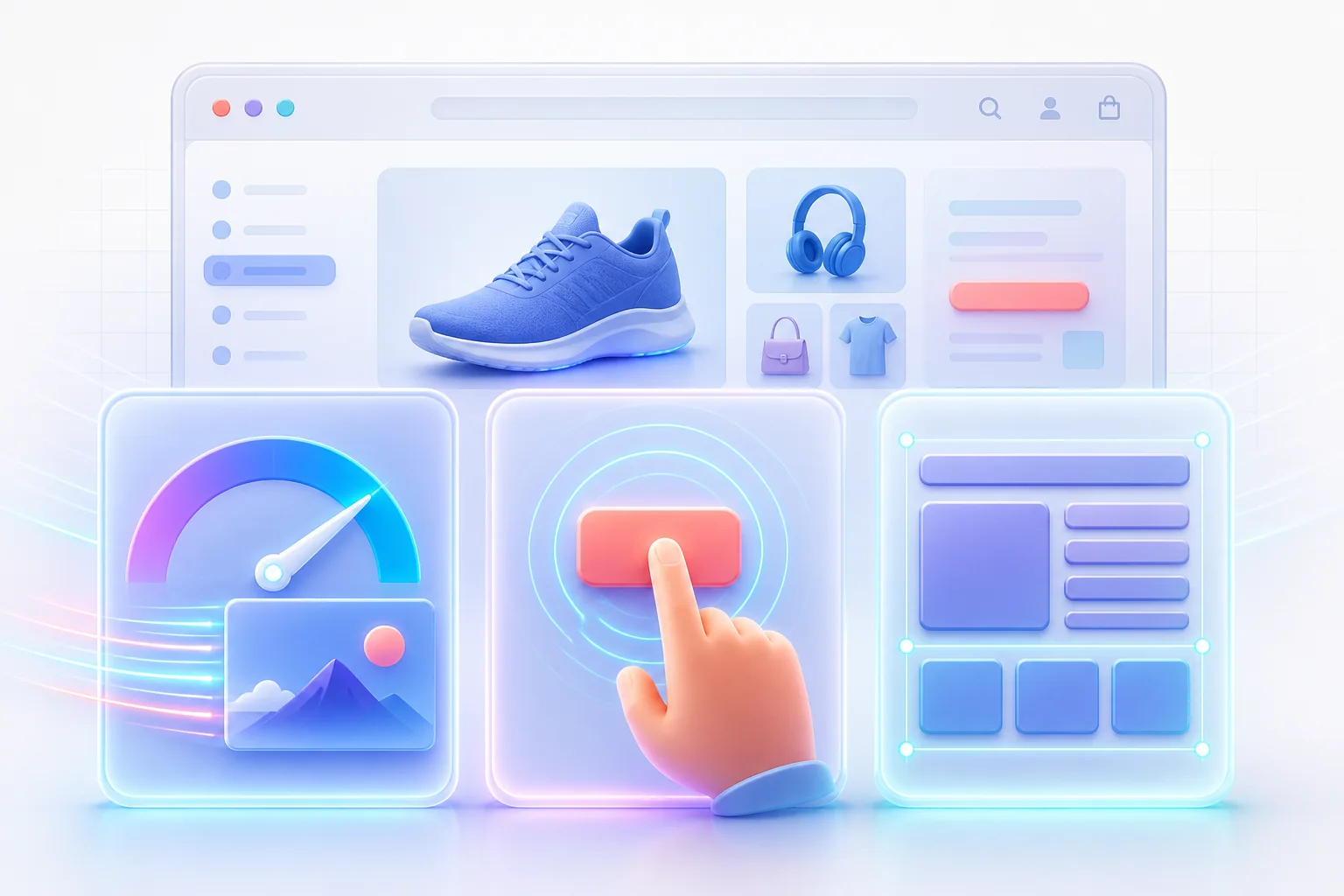
Shopify performance is not one number. A storefront can display quickly yet hesitate when a shopper opens a filter, or it can respond promptly while product content jumps as images and app widgets arrive. Core Web Vitals separate those experiences into loading speed, responsiveness, and visual stability so you can diagnose the specific problem instead of applying random speed fixes.
The useful goal is not a perfect screenshot from a single test. It is a consistently good experience for real shoppers across important page types, devices, and network conditions. Shopify already provides hosting, caching, compression, and an image CDN, so merchant-controlled work should focus on theme decisions, images, apps, third-party code, and what each template asks the browser to do.
Know what LCP, INP, and CLS measure
| Metric | What the shopper experiences | Good threshold |
|---|---|---|
| Largest Contentful Paint (LCP) | How quickly the main visible content appears | 2.5 seconds or less |
| Interaction to Next Paint (INP) | How promptly the page gives visual feedback after an interaction | 200 milliseconds or less |
| Cumulative Layout Shift (CLS) | How stable the visible layout remains | 0.1 or less |
Google evaluates Core Web Vitals at the 75th percentile of page visits. That matters: a fast laptop on office Wi-Fi does not represent every customer. Mobile devices, slower connections, geographic distance, browser state, and third-party responses all affect the real experience.
Start with field data, then reproduce the issue in the lab
Shopify’s Web Performance reports use real user metrics and let you examine results over time, by page URL, and by page type. The summary covers the three Core Web Vitals, while report filters can help separate desktop and mobile behavior. Because field data is aggregated and can be delayed, use it to identify patterns rather than expecting an immediate change after every edit.
PageSpeed Insights can combine available field data with a Lighthouse lab test. Lighthouse and Chrome DevTools help you reproduce a page under controlled conditions, inspect the LCP element, view network requests, find long main-thread tasks, and observe layout shifts. A lab result is a diagnostic sample, not a replacement for field data.
- If field LCP is weak on product pages, test several high-traffic products—not only the fastest one.
- If INP is weak, reproduce real interactions such as opening filters, changing a variant, adding to cart, or opening the cart drawer.
- If CLS is weak, watch a cold load and a complete shopping flow. Cached images on a developer’s machine can hide shifts that first-time visitors see.
Compare home, collection, product, search, and cart experiences separately. Their templates, images, and app components differ, so one global score can conceal a page-specific bottleneck.
Improve LCP by making the main content easy to discover
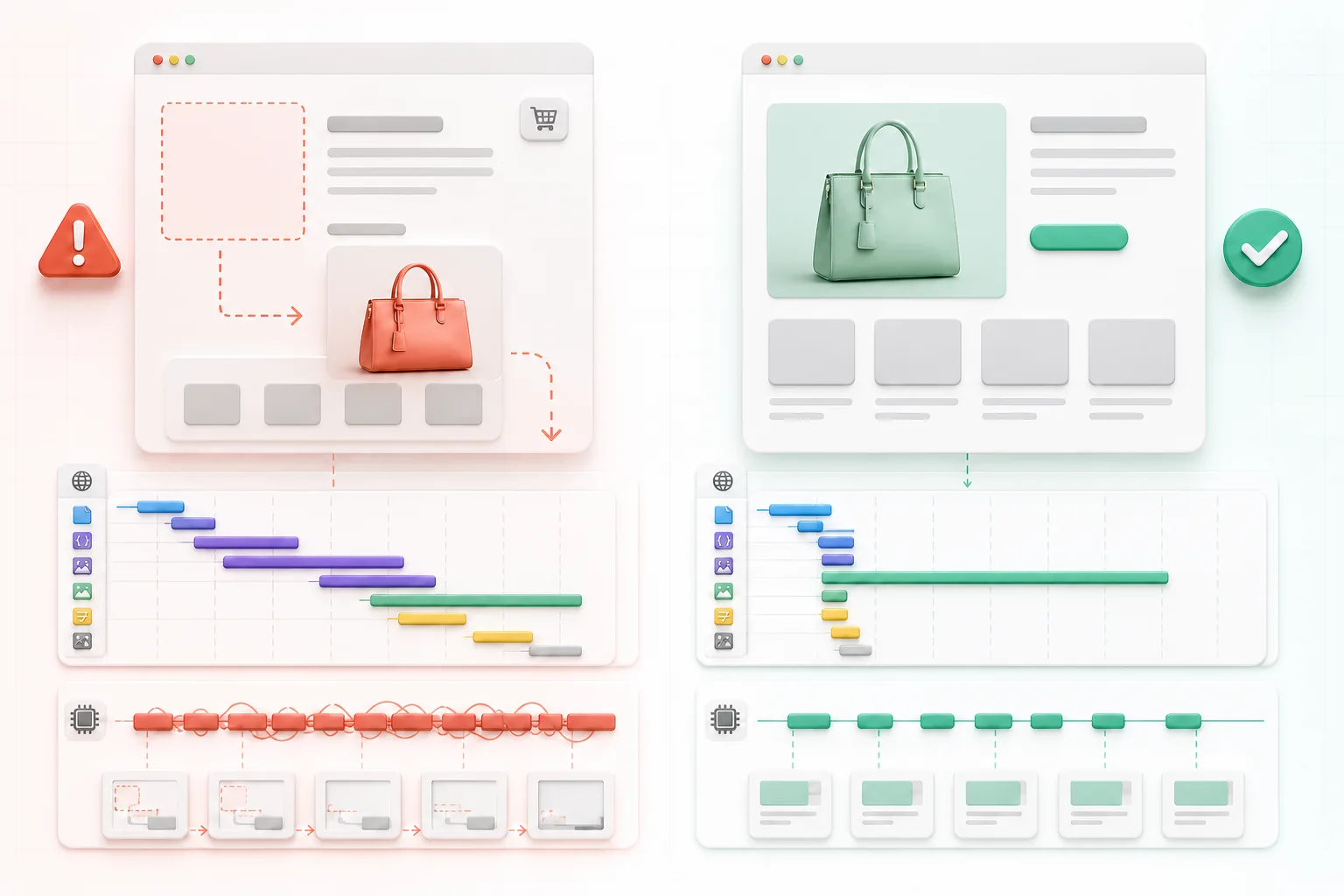
On a Shopify storefront, the LCP element is often a hero image, a product image, a promotional banner, or a large text block. Identify the actual element before changing code. Web performance guidance breaks LCP into the server response, delay before the LCP resource starts, resource download time, and delay before the completed resource can render. A smaller image helps only one part of that chain.
Do not lazy-load the likely LCP image
Above-the-fold images should load normally. Both Shopify and web.dev warn against lazy-loading an LCP image because the browser waits longer to request it. Make the image discoverable in the initial HTML with a real src or srcset, not inserted later by JavaScript or hidden behind a data-src convention.
If the hero is consistently the LCP element, Shopify’s image_tag supports a preload option that sends a resource hint. Use it sparingly—usually for the one genuinely critical image on the template. Preloading multiple competing images can consume bandwidth without improving the result.
Remove delays after the image downloads
A hero can finish downloading and still render late because a large stylesheet blocks painting, synchronous JavaScript occupies the main thread, a page-transition script hides the document, or a slider waits for initialization. Check the network waterfall and Performance panel. If the image completes early but LCP occurs much later, image compression alone is unlikely to solve the dominant delay.
Build a responsive Shopify image pipeline
A phone should not download the same oversized image intended for a wide desktop banner. Shopify’s image_url and image_tag filters work with the image CDN, and image_tag can generate a srcset. The sizes attribute tells the browser how wide the image will be in the layout so it can choose an appropriate candidate.
{{ section.settings.hero_image
  | image_url: width: 2000
  | image_tag:
    widths: '480, 750, 1100, 1500, 2000',
    sizes: '(min-width: 990px) 50vw, 100vw',
    loading: 'eager',
    preload: true
}}
This is a pattern, not a universal snippet. The sizes value must describe the image’s real rendered width, and only a likely above-the-fold LCP image should be eager or preloaded. Images farther down the page can use native lazy loading. Test the rendered HTML because theme section position, merchant settings, and conditional layouts can change which image is actually above the fold.
Shopify’s image CDN can resize, compress, and serve a suitable image format. You still control the source asset and layout. Upload a clean source large enough for its intended use, avoid needlessly massive dimensions, use photography and transparency formats appropriately, and crop with the mobile composition in mind. A CDN cannot make a poor art-direction decision readable on a narrow screen.

Protect CLS by reserving space
The browser should know an image’s footprint before its pixels arrive. Shopify’s image_tag adds width and height attributes based on the requested image and aspect ratio by default. Preserve those dimensions, or reserve the equivalent space with CSS aspect-ratio. Responsive CSS can still scale the image; the attributes give the browser the ratio needed to allocate space.
Images are not the only CLS source. Review announcement bars, cookie notices, review summaries, payment messaging, recommendation blocks, chat launchers, video embeds, and app banners. If a component arrives after initial render, give its container a predictable minimum size or place it where expansion will not push the shopper’s current target. Avoid inserting promotions above content that a customer is already reading.
- Keep product-card image ratios consistent within a grid.
- Reserve room for price, compare-at price, badges, and rating summaries when their states vary.
- Define dimensions for videos, iframes, and embedded media.
- Check font loading and fallback metrics if text swaps cause headings or buttons to reflow.
- Test sticky headers and dynamic checkout areas at common mobile widths.
Improve INP by reducing main-thread competition
INP includes the delay before an interaction’s event handlers run, the time those handlers spend processing, and the delay until the browser paints the next frame. A button can therefore look simple while several scripts compete on the main thread. On Shopify stores, likely contributors include theme bundles, app scripts, analytics tags, consent tooling, recommendation widgets, and complex variant or cart logic.
Start with the slow interaction, not a list of every script. Record a Performance trace while reproducing it. Look for long tasks around the click or tap, identify their script origins, and determine whether the work is necessary at that moment.
- Remove unused behavior. Disable stale app embeds, duplicate trackers, and theme features that no longer serve a business purpose. Uninstalling an app may not remove old theme code, so inspect the theme afterward.
- Load by context. A product-specific widget does not need to run on every collection page. Load optional components only on templates that use them.
- Defer noncritical work. Shopify recommends avoiding parser-blocking scripts and using
deferorasyncwhere behavior and dependency order permit. - Initialize on interaction when appropriate. A rarely opened size guide or video player can often wait until the shopper requests it.
- Keep handlers focused. Update the interface promptly, then split or defer unrelated work so one event does not become a long blocking task.
Do not remove a revenue-critical or accessibility-critical feature solely to improve a score. Measure the feature’s user and business value, test a lighter implementation, and verify that checkout, analytics consent, keyboard operation, and screen-reader behavior still work.
Use a release-and-measure workflow
- Choose the affected template and metric. “Improve product-page LCP” is testable; “make the whole store faster” is not specific enough.
- Capture a baseline. Save Shopify field trends and repeat several lab runs for representative URLs. Note the LCP element, long tasks, image requests, and shifts.
- Change one main variable. Examples include correcting hero loading, fixing
sizes, reserving app space, or deferring one noncritical script. - Test the preview theme. Check desktop and mobile, slow network and CPU conditions, variant changes, filters, add-to-cart, cart drawer, search, and accessibility basics.
- Publish with a record. Note the date, affected templates, and expected metric so Shopify’s over-time report can be interpreted later.
- Watch field data. Real-user reporting will not change instantly. Allow enough data to accumulate, compare the relevant page type and device segment, and watch for regressions elsewhere.
Performance work is usually cumulative. A correctly prioritized hero, responsive image candidates, stable media boxes, and less main-thread work each remove a different source of delay. The strongest program repeats this process whenever a theme, app, campaign component, or tracking tag changes.
Optimize the shopping experience, not just the audit
Core Web Vitals are useful boundaries, not a promise of rankings or sales. Treat them as evidence about what customers encounter. Use field reports to find the weak page type, lab tools to isolate the cause, and Shopify-aware fixes to improve the actual path from landing page to product decision.
If you want a structured view of broader store SEO checks alongside your performance work, explore the Firefly Sky SEO Suite. The SEO Suite quick-start guide covers initial setup, and the Firefly Sky homepage lists the current products separately.